
Mastering Primavera P6: A Comprehensive Guide for Project Management Success
Primavera P6 is a powerful project management tool that has become the industry standard for planning, managing, and executing projects efficiently. With its capabilities to manage large-scale and complex projects, mastering Primavera P6 can elevate your project management skills to new heights.
Imagine you’re managing a construction project. You’ve got timelines to meet, resources to allocate, and risks to manage. Using Primavera P6, you can create a detailed project schedule that is not just a list of tasks but a comprehensive roadmap that visualizes your project’s success.
Understanding the Interface
When you first open Primavera P6, the interface can be overwhelming. Don’t worry! Familiarizing yourself with the layout is the first step. You’ll notice:
- Project Workspace: This is where you manage all your projects.
- Activities View: Here, you can add tasks or activities that your project requires.
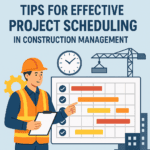
- Gantt Chart: This visual representation helps to understand the project timeline at a glance.
Here’s how the Gantt Chart might look for a small construction project:
| Activity Name | Start Date | End Date | Duration | Predecessors | Resource |
|---|---|---|---|---|---|
| Site Preparation | 01/01 | 01/15 | 15 days | – | Crew A |
| Foundation Work | 01/16 | 02/05 | 20 days | 1 | Crew B |
| Framing | 02/06 | 02/20 | 15 days | 2 | Crew C |
Tip: Use the “Filters” to narrow down activities for better visibility. For example, filter activities by status—completed, in-progress, or not started.
Creating a New Project
Creating a new project in Primavera P6 is straightforward:
- File Menu: Click on “New”.
- Project Preferences: Fill in the project name, start date, and other relevant details.
- Define Work Breakdown Structure (WBS): It helps organize the project into manageable sections.
Defining Activities and Milestones
Activities are the backbone of any project. Here’s how you can define them:
- Go to the Activities view.
- Click on “Add Activity”.
- Define the activity name, duration, and assign resources.
Milestones signify important phases or deliverables in your project. For example, achieving “Foundation Complete” would be a milestone. Setting milestones helps keep everyone aligned and motivated.
Resource Allocation
Proper resource allocation is vital for project success. You can manage resources like labor, materials, and equipment in Primavera P6:
- Resource Dictionary: Create a list of resources.
- Assign Resources: In the Activities view, you can assign resources to specific tasks.
- Monitor Resource Usage: Use the resource usage histogram to analyze the workload of your resources
Resource Allocation Example
| Resource Name | Type | Rate per Hour | Total Hours | Total Cost |
|---|---|---|---|---|
| Crew A | Labor | $20 | 120 | $2400 |
| Crew B | Labor | $25 | 80 | $2000 |
| Concrete | Material | $100 | 10 | $1000 |
Managing Risks
In any project, effective risk management can save you time and money. Create a Risk Management Plan using Primavera P6:
- Identify Risks: List down potential risks that may affect your project.
- Analyze Risks: Evaluate their impact and likelihood.
- Mitigation Strategies: Define actions to minimize risks.
For example, if a weather delay risks affecting your schedule, having a plan to arrange for indoor work can mitigate that risk.
Communication and Collaboration
Primavera P6 also offers great capabilities for enhancing communication among stakeholders. Utilize the following features:
- Reports: Generate periodic reports to update stakeholders on project status.
- Notes: Leave comments or notes on specific activities for better clarity.
Case Study: Small Construction Project
Let’s say you’re managing a small residential construction project. You start by defining the WBS as follows:
- Site Preparation
- Foundation Work
- Framing
- Roofing
- Finishing
Using Primavera P6, you can create a detailed schedule with the activities outlined above, assign resources, track progress, and quickly adapt to any changes—be it a delay in material delivery or additional work requested by the client.
Advanced Reporting
Creating reports is a crucial part of project management. Primavera P6 offers advanced reporting features:
- Pre-Defined Reports: Use built-in templates for quick reporting.
- Customize Reports: Alter formats to fit unique project needs.
Useful Tools and Templates
Primavera P6 has various tools and templates that can simplify your workflow:
- Primavera P6 Services: Explore various online services that offer support, training, and consulting specifically for Primavera P6. Check them out here.
- Primavera P6 Tools: There are tools available to enhance your Primavera experience, such as add-ons for better visualization. Explore these tools here.
- Templates: Use existing templates for common project types to save time. Templates can be found here.
Frequently Asked Questions
Q1: What kind of industries use Primavera P6?
A1: Primavera P6 is widely used across various industries, including construction, engineering, oil and gas, aerospace, and IT.
Q2: Is Primavera P6 suitable for small projects?
A2: Yes! While it’s particularly powerful for large projects, Primavera P6 can also be tailored for small projects, providing detailed scheduling and resource management.
Q3: Do I need training to use Primavera P6?
A3: While it’s possible to self-learn Primavera P6, formal training can significantly speed up the learning process and improve your skills.
Q4: Can I integrate Primavera P6 with other tools?
A4: Yes, Primavera P6 can be integrated with various tools and software for enhanced project management capabilities.
Q5: Is there support for troubleshooting issues in Primavera P6?
A5: Absolutely! Oracle offers extensive support and provides a community forum for users to share solutions and ask questions.
Mastering Primavera P6 takes practice and time, but with diligent effort, your project management skills will flourish. 🌟 As you navigate this powerful tool, remember that even the most complex projects can be managed effectively with the right strategies. Happy planning!