


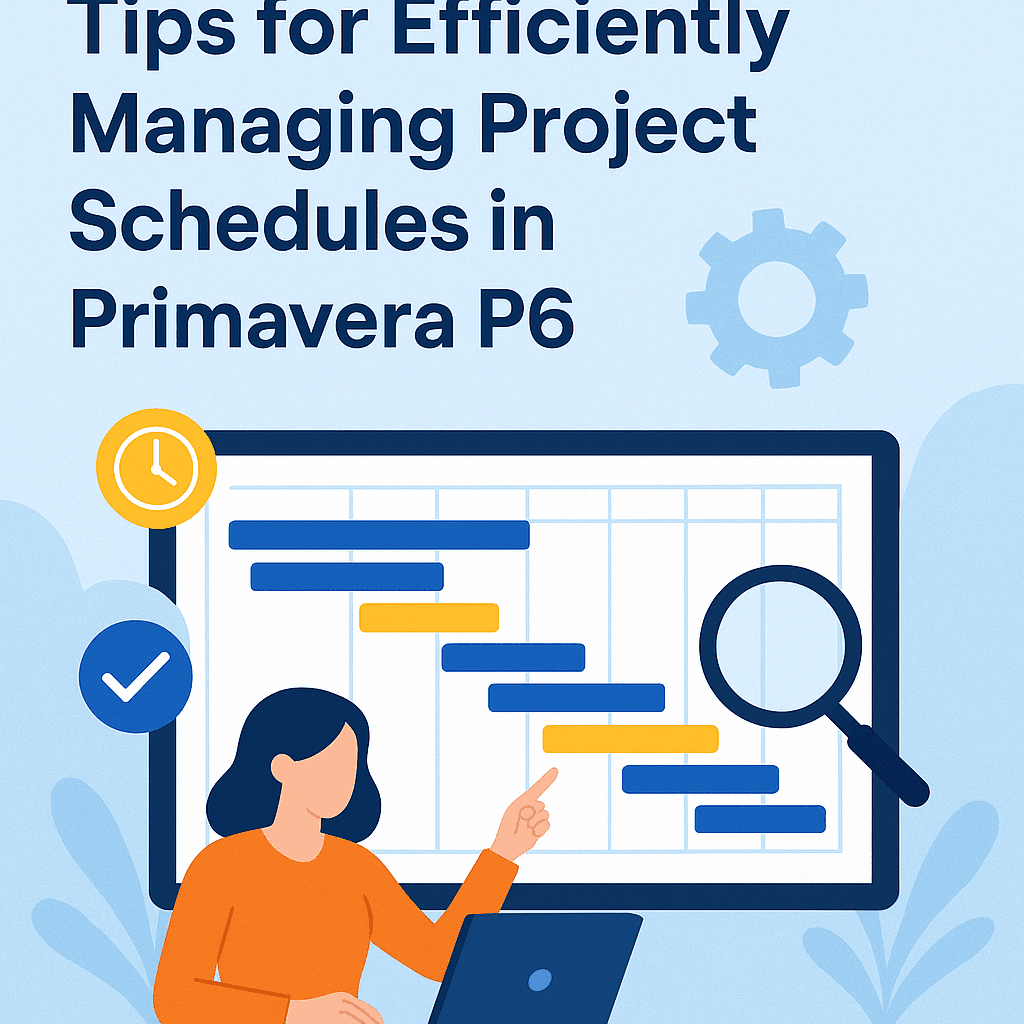
Tips for Efficiently Managing Project Schedules in Primavera P6
When it comes to project management, scheduling is paramount. Primavera P6 is a robust tool designed for project managers to create and maintain detailed project schedules. Below are some practical tips and insights to help you navigate this powerful software efficiently.
Understanding the Basics
Before diving deep into the tips, it’s essential to have a firm grasp of the basics of Primavera P6. Familiarity with terms like “activities,” “wbs” (Work Breakdown Structure), and “relationships” will significantly enhance your experience.
Creating a Work Breakdown Structure (WBS)
A well-structured WBS is crucial. Suppose you’re managing a construction project. Start by breaking down the project into major components, like site preparation, foundation, and roofing. Each of these components can then be divided into smaller tasks.
For example:
| WBS Level | Description |
|---|---|
| 1 | Construction Project |
| 1.1 | Site Preparation |
| 1.1.1 | Clear Land |
| 1.1.2 | Set Up Site Office |
| 1.2 | Foundation |
| 1.2.1 | Excavate |
| 1.2.2 | Pour Concrete |
Use of Calendars
Primavera P6 allows you to define calendars for your project. It is crucial to set the appropriate calendar to reflect working hours, holidays, and non-working days. If you were to set up a standard workweek as Monday to Friday, 9 AM to 5 PM, this will aid in scheduling your tasks accurately.
Logic and Relationships
Creating logic and defining relationships can ease the management of tasks. For instance, the completion of “Excavate” must precede the “Pour Concrete.” Getting these dependencies correctly set up is beneficial for understanding the flow of tasks.
Example:
- Finish-to-Start (FS): Activity A must finish before Activity B can start.
- Start-to-Start (SS): Activity A must start before Activity B can start.
| Activity | Duration | Predecessor |
|---|---|---|
| Excavate | 5 days | N/A |
| Pour Concrete | 3 days | Excavate (FS) |
Resource Allocation
Avoid over-allocating resources. Primavera P6 allows you to monitor resources effectively. By identifying critical resources and ensuring they aren’t overloaded, you can keep your project on track. If you assign too many tasks to a single resource, Primavera will alert you.
Regular Updates and Progress Monitoring
Keeping your schedule updated is vital. Regularly input updated progress into Primavera P6. This will help you track where things stand and adjust your plan as needed. If an activity falls behind schedule, you can quickly assess the impact on subsequent tasks.
Utilizing S-Curve Reports
S-curves are an excellent visual tool for understanding project performance. They provide insights into the planned versus actual completion. By referring to these curves in Primavera P6, you can easily identify trends and areas that need attention.
Case Study:
Imagine you are managing a highway construction project. You’ve created a robust WBS, set clear dependencies, and utilized S-curves to track progress. However, midway through the project, heavy rain delays several activities.
- By inputting the delay in Primavera P6, you forecast that this will postpone the finish date.
- You can explore options like resource leveling to get back on track or even adjust non-critical paths.
Effective Use of Baselines
Setting a baseline schedule in Primavera P6 is one of the most critical steps in project management. It allows you to compare your current progress with the planned schedule. Always ensure you have a baseline set before commencing work—it serves as your project’s “north star.”
Communication and Team Collaboration
Primavera P6 can be a collaborative tool. Allow team members to access their tasks in the system, promoting transparency. Regular communication, whether through meetings or updates in the software, streamlines project management efforts.
Exporting Reports
Primavera P6 allows you to export reports, which can be useful for stakeholder updates or internal reviews. Customize your reports based on the audience’s needs. For instance, top management may prefer high-level summaries, while team leads may want detailed task breakdowns.
Leveraging Templates
To save time, consider using existing Primavera P6 templates for similar projects. These templates can provide a starting point and ensure you don’t miss essential elements when planning a new project. Look for Primavera P6 templates here.
Conclusion
Managing project schedules in Primavera P6 is no small feat, but with careful planning and regular monitoring, it can be done effectively. This tool’s capabilities can significantly enhance your project’s completion time and quality.
FAQs
Q: How can I adjust an activity’s duration after it has started?
A: Simply open the activity and modify the duration in the “General” tab. Ensure that you adjust subsequent tasks if there are dependencies.
Q: What should I do if my project exceeds the baseline?
A: Analyze the S-curves and identify the cause of the delay. Consider re-allocating resources or trimming non-critical tasks to catch up.
Q: How do I share reports with stakeholders?
A: Use the export functionality within Primavera P6 to create PDF or Excel formats suitable for sharing with stakeholders.
Q: Can I integrate Primavera P6 with other tools?
A: Yes, Primavera P6 supports integration with various software, enhancing interoperability. Explore Primavera P6 services for specific integrations.
Q: How often should I update the project schedule?
A: Regular updates are recommended—at least weekly. This ensures you remain proactive in addressing any project issues.
By following these tips and utilizing the features of Primavera P6 effectively, you’ll ensure that your project schedules are well-managed and continuously optimized! 🌟